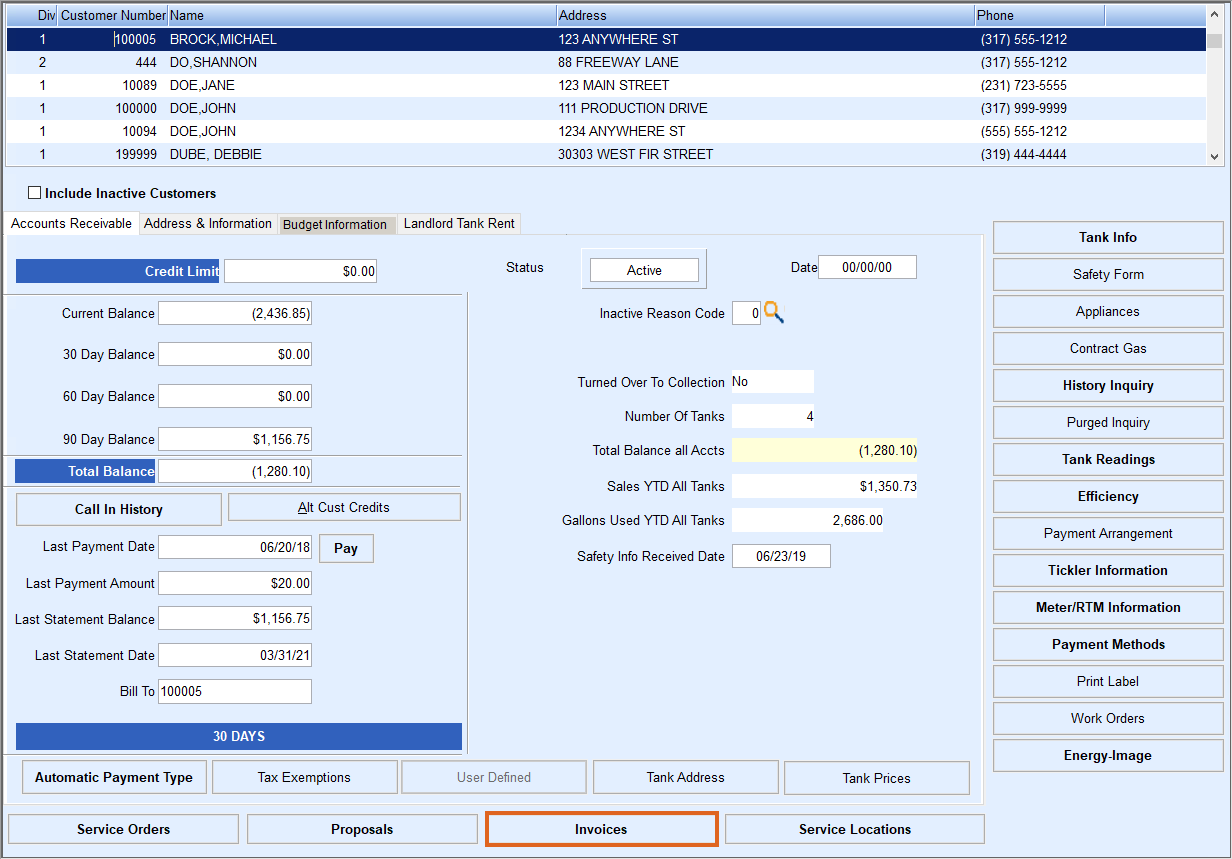
Invoices are created in EnergyService by selecting Invoices.
- Select Invoices.
- Highlight the customer and choose the Invoices tab.
- Press Ctrl+C or choose Create. The Invoice will automatically default to the customer highlighted.
- Enter the Service Location, Service Order Type, and Sales Rep (optional) by selecting the Search icon or pressing F5.
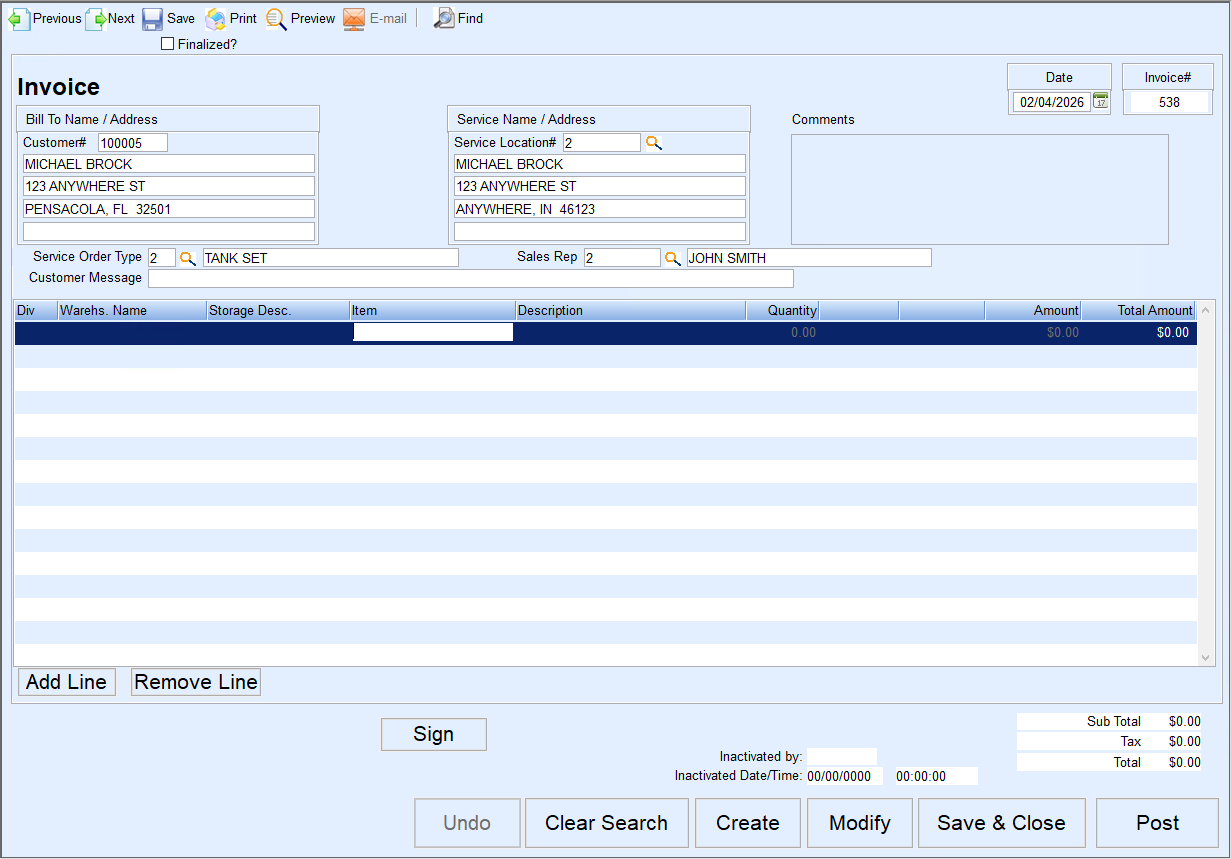
- Enter Comments if desired. (This message will print on the customer Invoice.)
- Go to the Inventory Item and press F5 to display inventory items. Search by Division, Warehouse, Storage Description, Item, Descriptions, Category, etc.
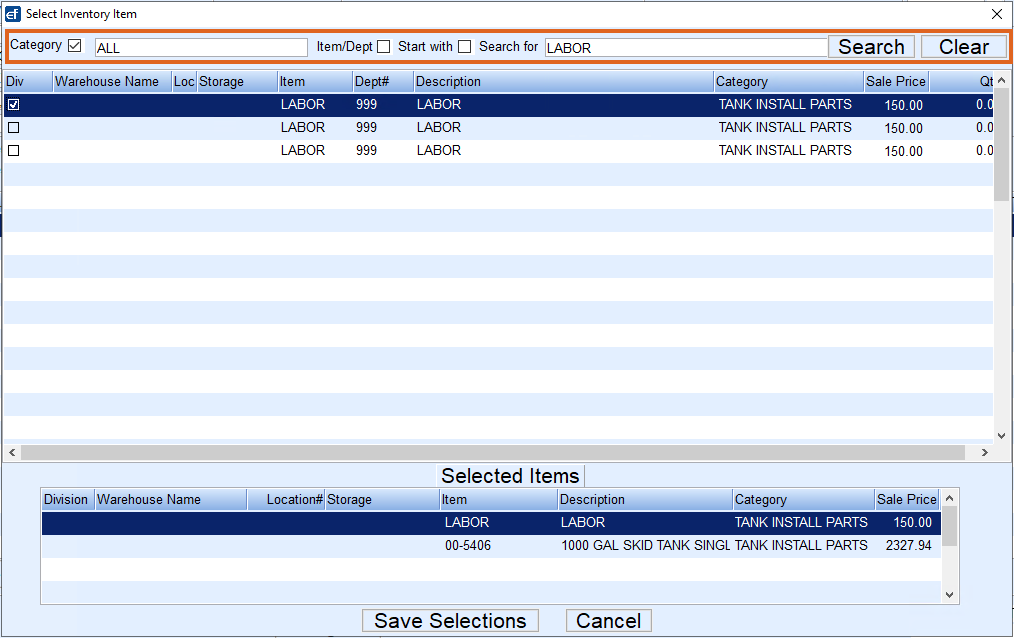
- Check the items to be billed and select Save Selections. This will return to the Invoice screen.
- Enter the Qty for each line item. The total amount column will automatically calculate as will any applicable taxes.
- If ready to complete the invoice and post to the customer account, select Post. Select the number of invoices to print.
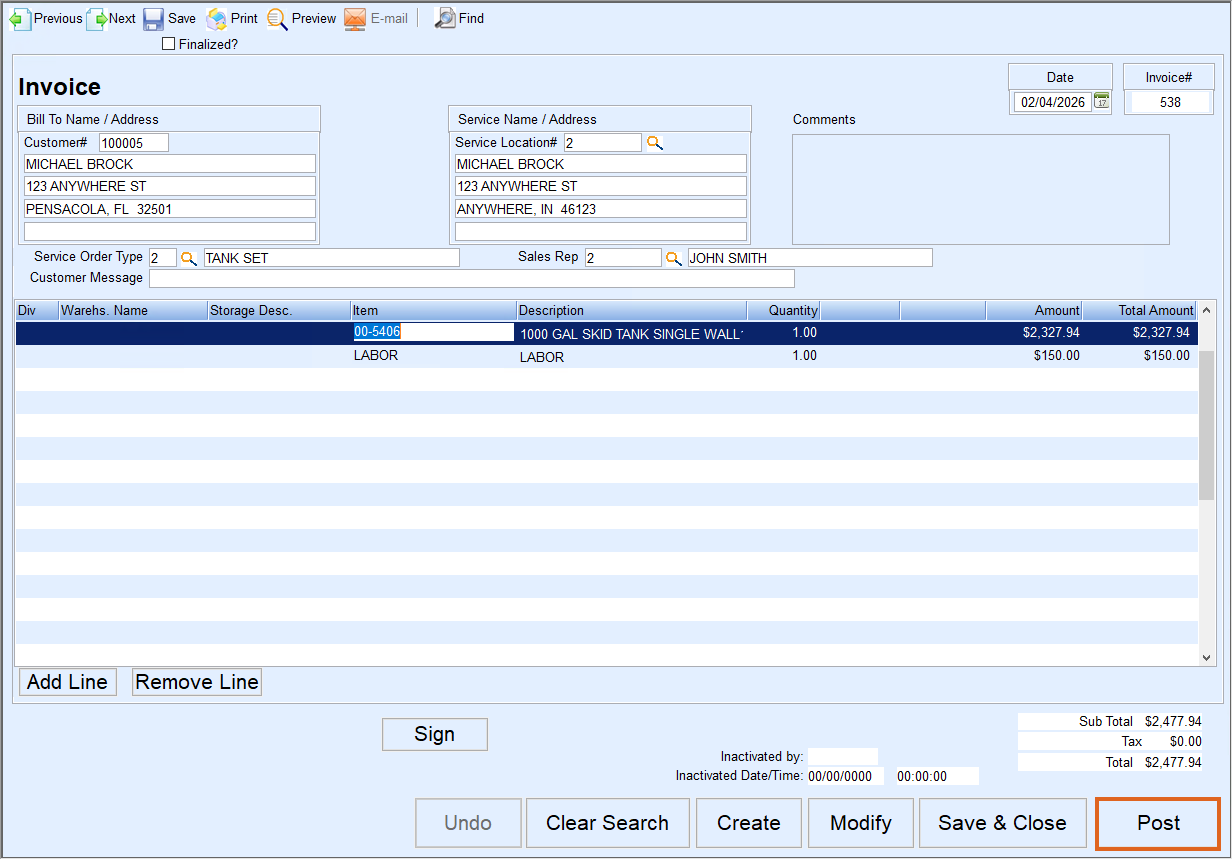
- If not ready to post, choose Save and Close. Return to the invoice at any time to modify as necessary and select Post.
- Select the number of invoices to print.
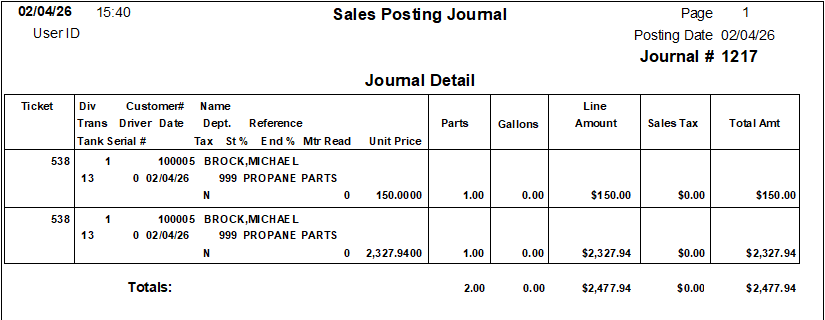
- A sales journal will automatically generate. A Service Journal will be indicated by prepending an S in the User ID column.

- The journal will reflect the items purchased by customer and will update the customer history information.