Energy Force users who also use Agvance can update Booking Contracts without running the export/import processes. The program can run manually or with Automated Tasks. This process brings in any non-voided and non-invoiced Bookings/Contracts increasing efficiency.
Setup Steps
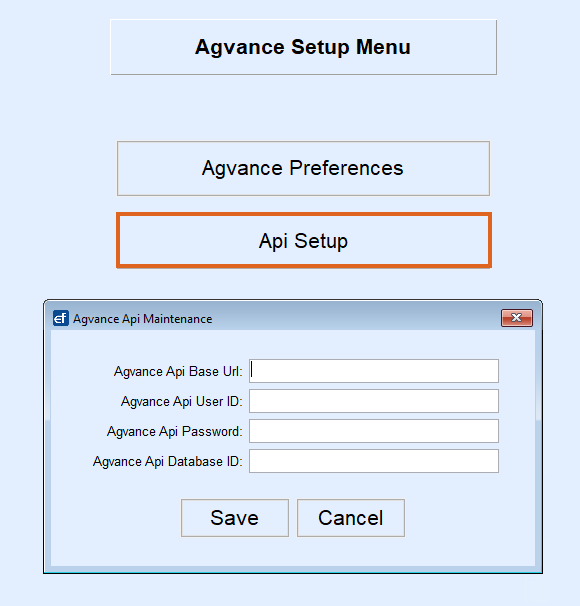
- Two Agvance Preferences will need updated at Supervisor Menu / Set Up Options / Agvance Setup Menu / Agvance Preferences. The API Settings, also found in the Agvance Setup Menu, will need filled in as well if not already.
- Import Bookings from Agvance and Attach Tanks to Bookings – Set both to Y in order to use this method of importing and attach the tanks at time of import.
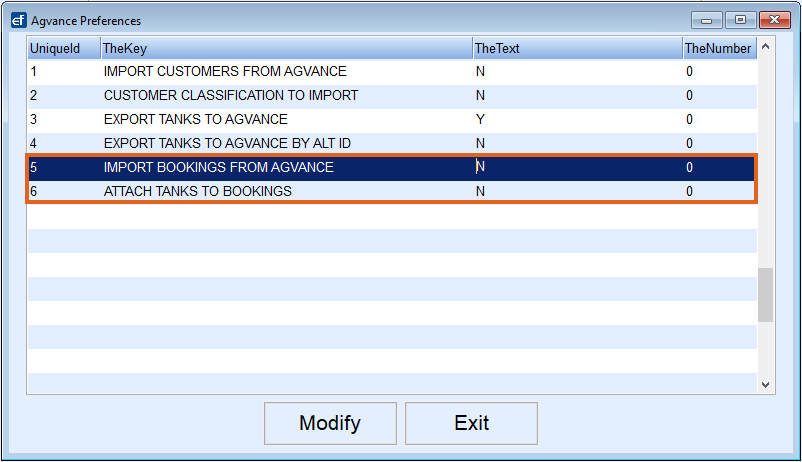
- When the setting is set to N the export/import process using a file works as before. Once changed to Y, the process is run from Posting Menu / Contract Import / Contract Import. When selected, a message displays asking if tanks should be attached to the contracts.
-
Once the import is complete the user will receive a Contracts Imported message.
- Import Bookings from Agvance and Attach Tanks to Bookings – Set both to Y in order to use this method of importing and attach the tanks at time of import.
- The AgvanceSqlDatabase value has to exists in the Secured Values. Contact Support for assistance with Secured Values.
Auto Task Import Booking Contracts
Energy Force customers also using Agvance can setup the Agvance Booking Import process to run automatically located at Supervisor Menu / Maintenance Menu / Automated Tasks Menu / Background Tasks.
Note: The secured values and system settings from the Setup Steps tab are required for the automation setup as well.
To setup this new automated feature:
- Select Contract Sync from the drop down.
- Enter the Interval (Minutes) for how often to update the contract list.
- Mark the task as Active.
- All of the Date fields as well as the User Id field will fill in automatically.
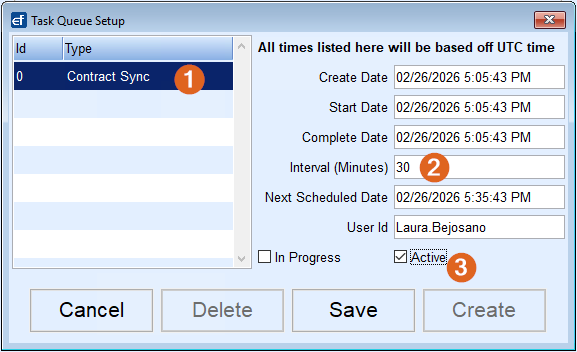
If a user opens the Background Tasks while a process is running the In Progress box will be checked. This process runs when there is a user logged into Energy Force. The Next Scheduled Date is based on the last completed date plus the Interval (Minutes). New and updated contracts with a last modified date and time in Agvance greater than the last Complete Date will import.
Note: In addition if the Booking Contract is marked as Generic Prepay, the gallons will be recalculated using the prepay dollars divided by the price per gallon. This applies to both the background task and the manual booking/contract import, but not in the old file export/import process.
Booking Contract Import Error
Contract Sync for mutual Agvance and Energy Force users will receive the error message shown below identifying if errors have been found and the path to the log file.
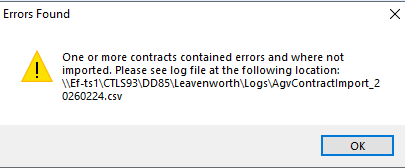
A log file is generated of all new Bookings/Contracts that were attempted to import saved to the Ctls93 / DD85 / Logs folder. The log is named AgvContractImport_YYYYMMDD (Year Month and Day). All imports during the day will be added to the same log file. The log file also indicates if the Booking/Contract was imported with Success or Error. If there is an error the Booking/Contract will not import and the error is listed in the log so that it can be fixed. Bookings with errors will not be flagged as exported in Agvance, so that once fixed, the booking will export during the next run.

Note: Customer, Tank and Booking Imports will no longer be stopped from running due to the Log file being open. If the Log file is open when the imports are ran, a new Log file will be created with a time stamp added to the end of the Log file name. Once the original Log file is closed additional runs will continue to add to it.