Creating a Proposal from a Service Order gives the ability to enter items that will be used to complete the Service Order and provide the customer with a cost estimate.
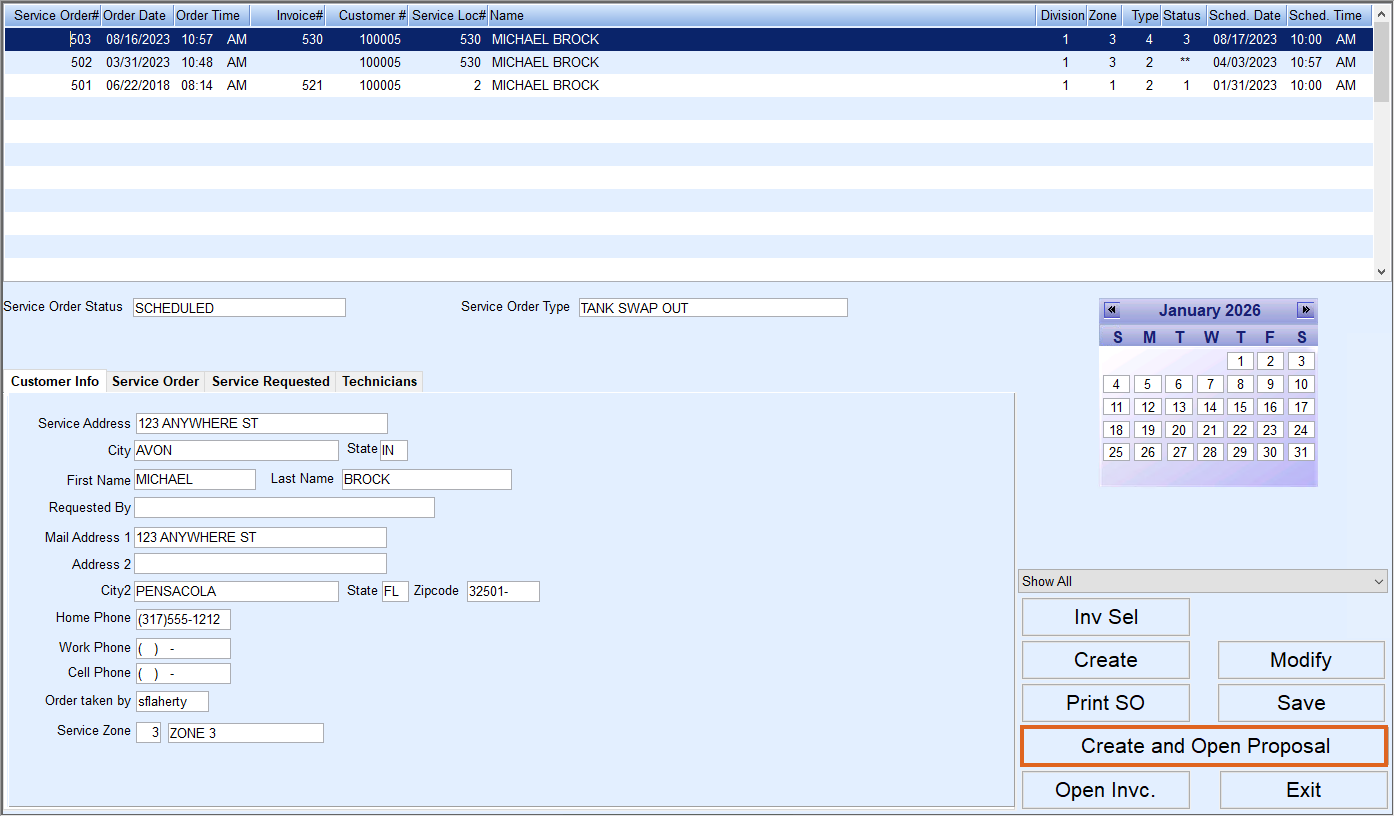
- While on the Service Order screen, highlight the Service Order# and select Create and Open Proposal.
- The Bill To Name / Address and Service Name / Address will automatically default based on the information entered into the Service Order. The Service Order Type will default as well.
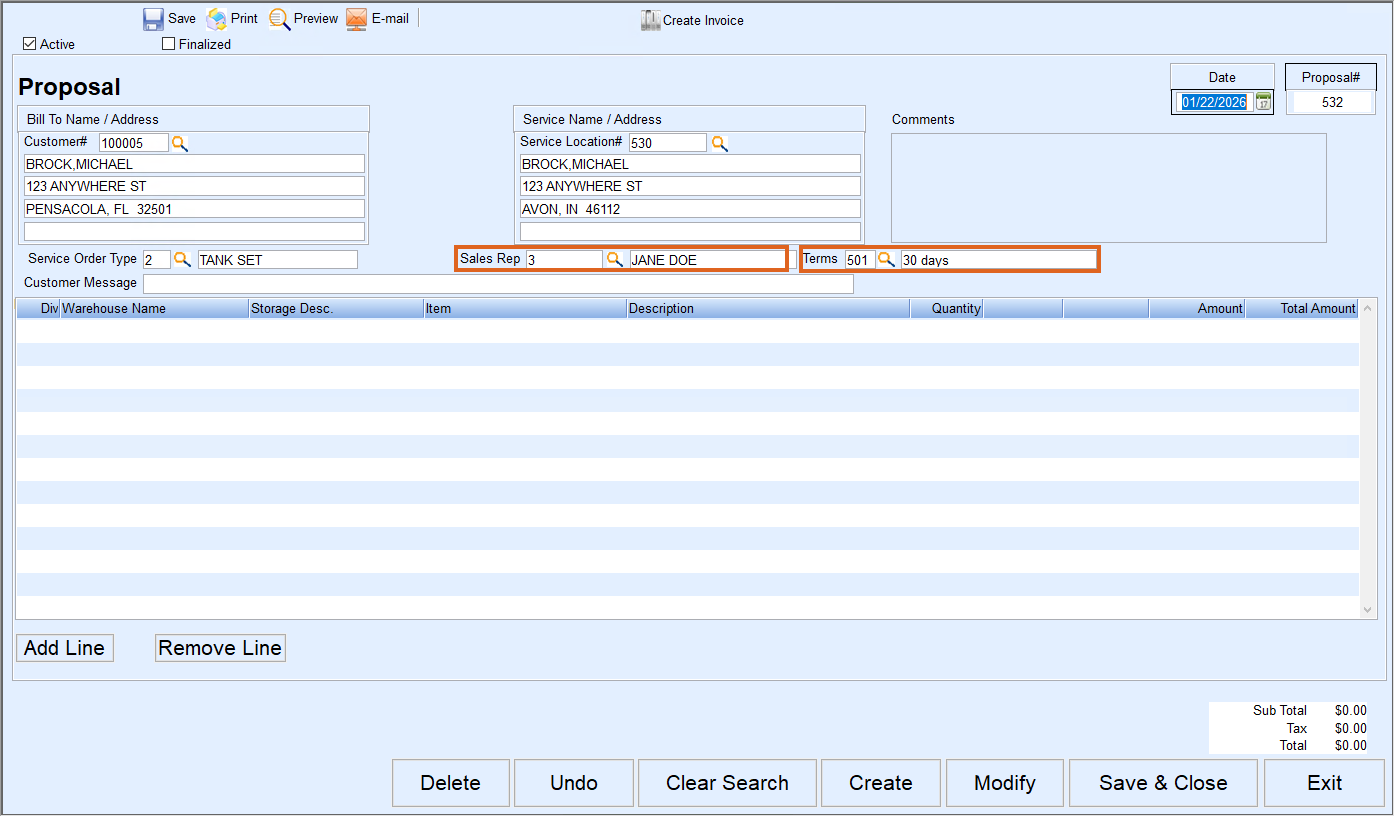
- Select the Search icon to select the Sales Rep responsible for preparing the proposal from the list.
- Select the Search button and choose the applicable Proposal Terms.
- Press F5 in the Item field to bring up the Select Inventory Items screen.
- The Select Inventory Item screen displays all items that have been set up in the maintenance tables and will default to the Warehouse Location the Service Location is assigned.
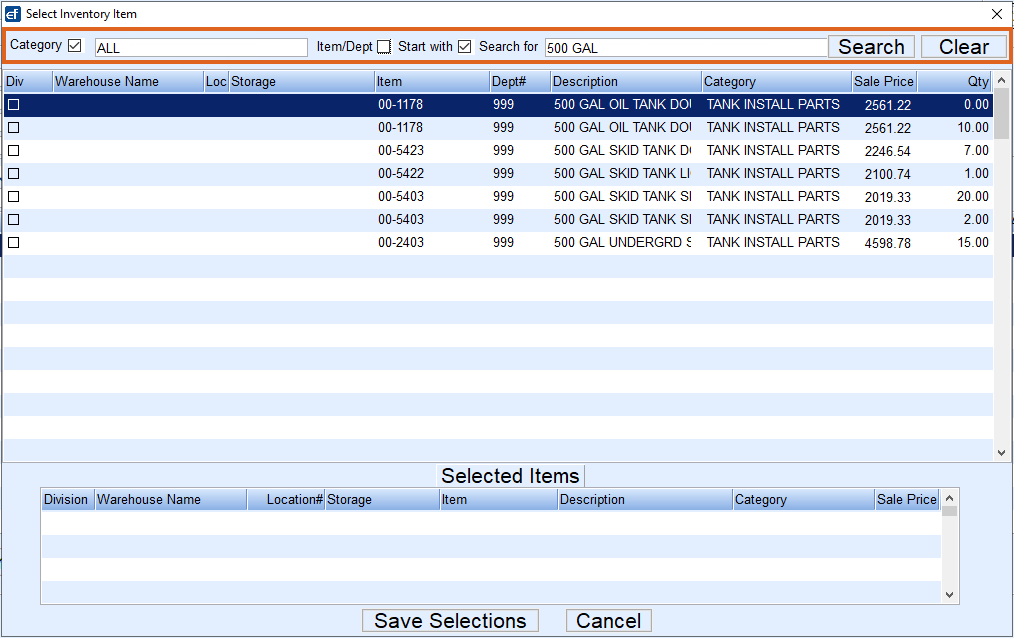
- The Select Inventory Item screen displays the Description and the current Qty on hand. Sale Price information is present as well.
- Highlight the line item and choose Select to return to the Proposal screen.
- Input the number of items in the Quantity area.
- Once a quantity is entered, go to the Amount field and edit as necessary. The price Markup and Total Amount fields will adjust automatically. As items are added to the Proposal, the Sub Total, Tax, and Total Amount of the proposal automatically update.
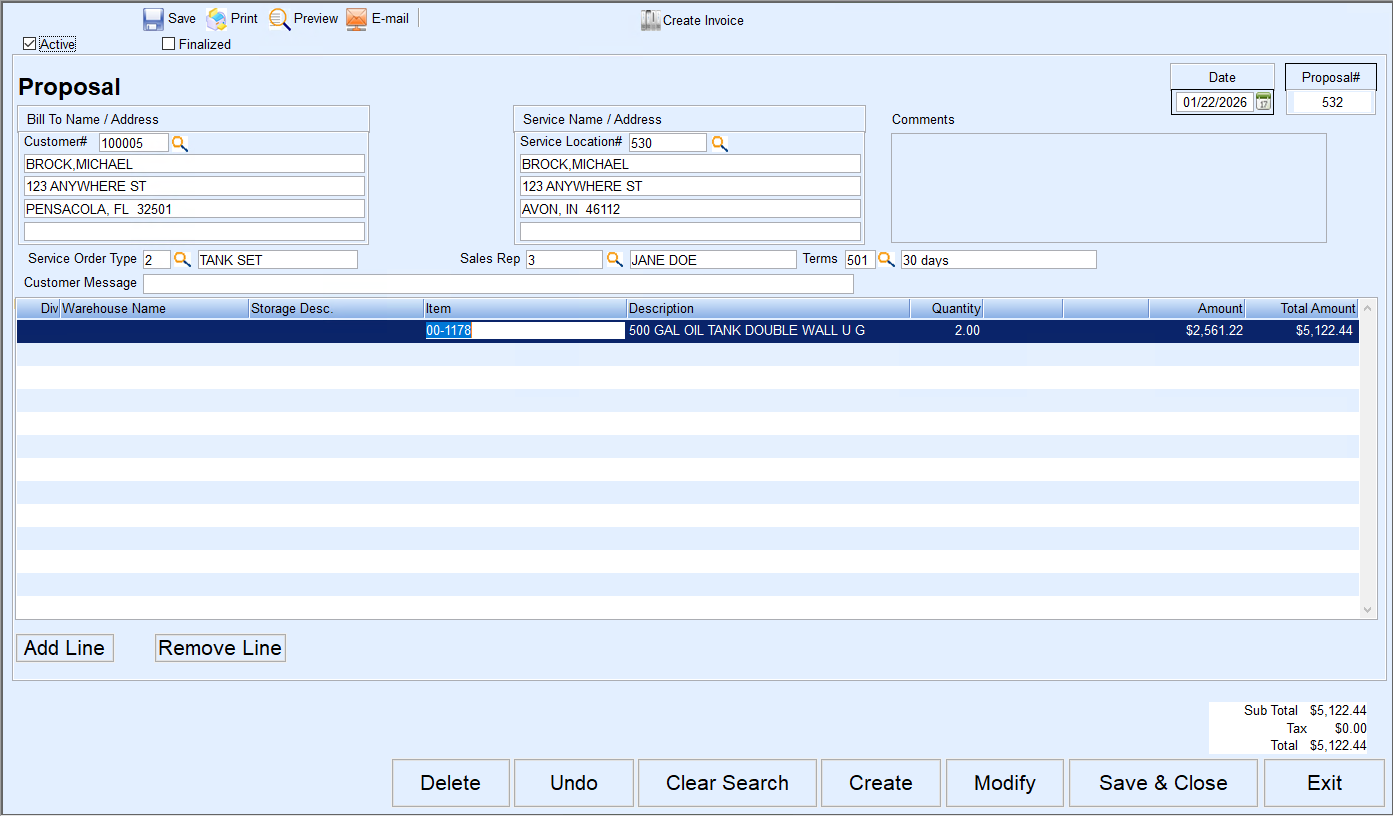
- To add another item to the proposal, press the Down Arrow key on the keyboard or press F4 to insert a new line.
- To enter additional comments for the customer, select Add Line and enter comments in the Description field. Do not press F5 for the item number.
- At the top of the Proposal screen, there is a Finalized checkbox. Selecting this indicates that the Proposal is guaranteed to the customer and the overall Total should remain intact. Other items can be added to the Proposal, but they will not display a price or add into the Total.
- Once all line items have been added, select Save and Close located in the bottom right of the screen. To print the Proposal, reopen the proposal and select Print located at the top left of the screen.
