Pending Ticket(s)
To view all Driver deliveries made and communicated from AME but not yet invoiced during the day, navigate to the Pending Tickets tab. When the page is refreshed, or upon initially opening the Orders page, the Pending Tickets number will update. Pending Tickets have their own numbering system that would not match Invoices. These are called Ticket Numbers in Agvance.
- Transaction Type – Use the filter to search for Invoice, Payment, Inter-Company Transfers.
- Status – Use the filter to search for imported tickets with the Status of Pending or Failed.
- Pending – Non-imported pending ticket (most transactions will appear as Pending).
- Failed – Any failed imported tickets will show as Failed.
The list can be narrowed down by selecting the Filter icon and entering a filter criteria or or any grid cell with the Search bar located in the header. When typing, the grid will populate based on the text entered. Choose the Ellipsis at the top to Reset Grid from filtering or Autofit Columns.

AR Invoices
View a listing of Energy Invoices tied to Product Delivery Orders (PDOs) on the Invoices tab at Agvance SKY Energy / Orders. The list can be narrowed down by selecting the Filter icon and entering a filter criteria or or any grid cell with the search bar located in the header. When typing, the grid will populate based on the text entered. Choose the Ellipsis at the top to Reset Grid from filtering or Autofit Columns.

The Invoice Number is tied to the Invoice. View more Invoice details by selecting the Invoice Number link on any row.


The Invoice opened shows more details including the Status (Open (Invoiced), Reversed, Voided, and Paid), Location Name, ID, and split information if applicable. The Tank Serial Number is tied to PDO/Invoice and when selected, opens the Tank Info page for that specific Tank in a new tab. The Product Delivery Order Number opens a new tab to view the relative Product Deliver Order page and related information.

Invoices also show Product detail in grid form and additional PDO details below the grid. The list can be narrowed using the Filter icon and filter criteria or by typing in the search bar located in the header to populate based on the text entered. Choose the Ellipsis at the top to Reset Grid from filtering or Autofit Columns.
Pricing details display on the Invoice view for review or referencing Energy Invoices.
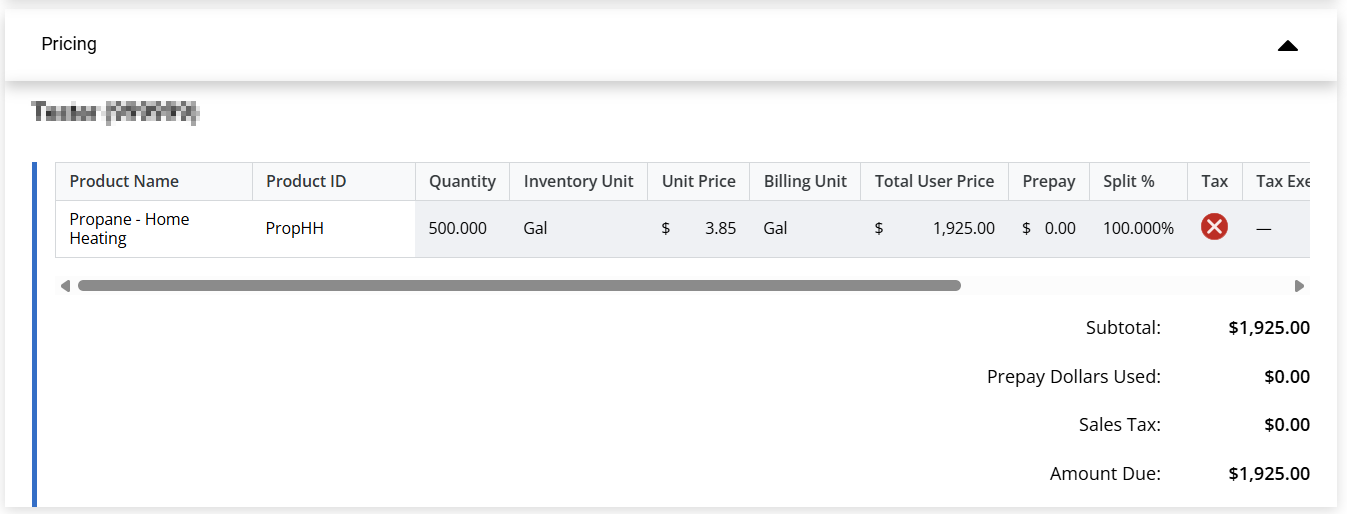
Note: Any field without data will show a double dash (--).
Return to the AR Invoices grid by choosing Close at the bottom of the Invoice details page.
On the AR Invoice grid, select the Paid under the Status column to open the Payments page of Agvance SKY Customer (with approved access) in a new browser tab.

If an AR Invoice has multiple Drivers associated with it, any/all associated Driver details will display.

Only the first Driver is displayed. Open and view the entire Invoice to view all Drivers.
Budget Billing Invoices
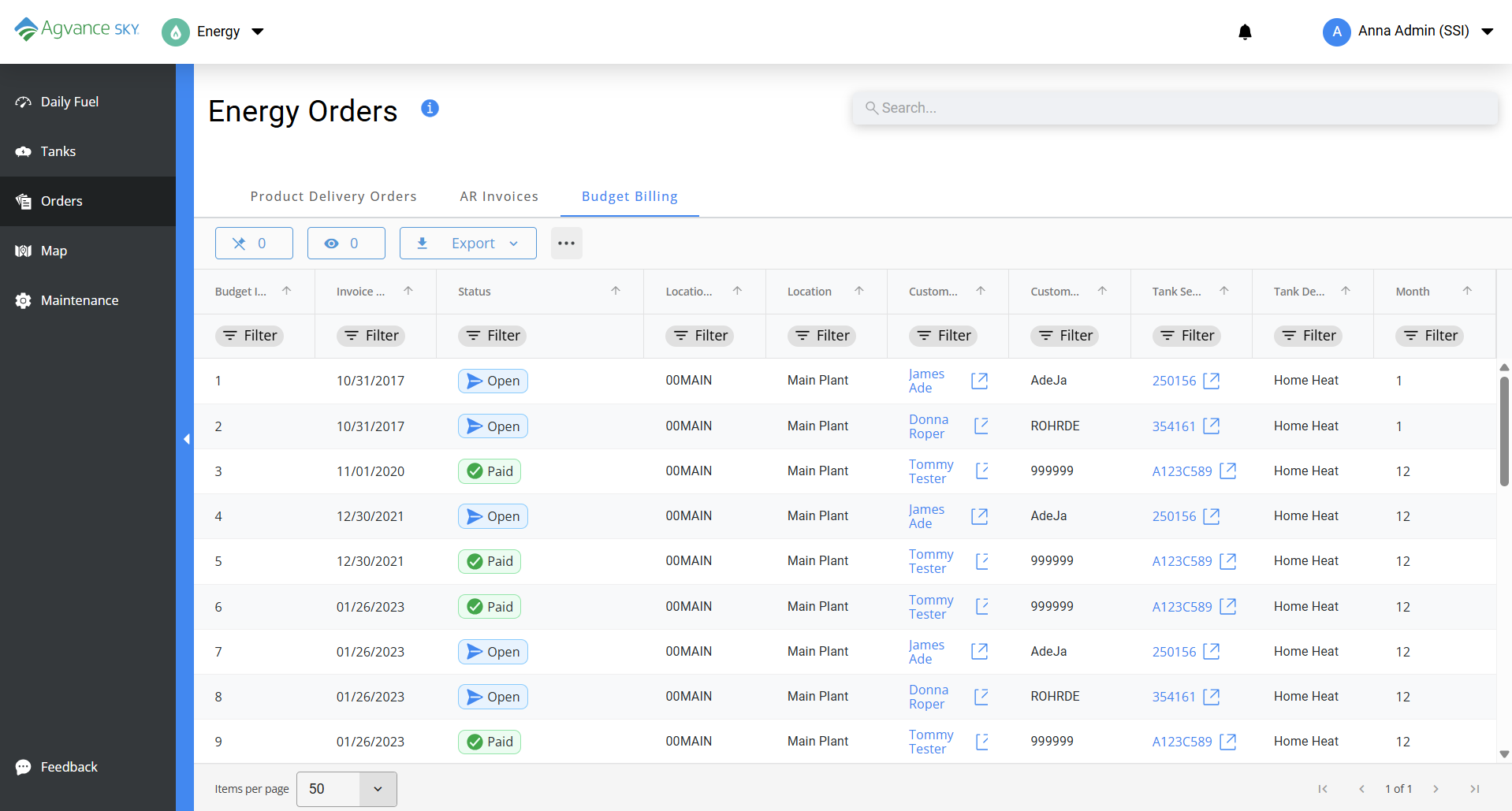
The Budget Billing Invoices tab displays a list view of all Budget Billing Customer Invoices at Agvance SKY Energy / Orders. The list can be narrowed down by selecting the Filter icon and entering a filter criteria or any grid cell with the search bar located in the header. When typing, the grid will populate based on the text entered. Choose the Ellipsis at the top to Reset Grid from filtering or Autofit Columns.
Select any Budget Invoice Number to open an Invoice details page that includes Tank and Customer information (with the Customer Name and Tank Serial Number redirecting to their respective pages with required Agvance SKY Customer access), Invoice details, Product details, and Pricing information.
Selecting Paid under the Status column on the Budget Billing Invoices tab opens the Customer's Payments page in Agvance SKY Customer in a new tab.
For all non-Budget Billing Energy Invoices, see the AR Invoices tab.
Post Budget Invoices
To select and post Budget Billing Invoices from Agvance SKY Energy without redirecting back to Agvance Windows, a Company Admin User Role will need to enable the Manage Budget Billing permission found by editing the User in Agvance SKY Admin.

Select the blue + Post Budget Invoices button on the Budget Billing Invoices page at Agvance SKY Energy / Orders to navigate to the Post Budget Invoices page.


- Choose the Cycle* from the drop-down. Once the Cycle is selected, the + Add Tanks button is enabled.
Note: Once Tanks are added, Cycle becomes read-only UNLESS all Tanks are removed.- Tanks displayed are within the selected Cycle type of budget billing Tanks.
- Multiple Tanks can be selected within the Tank Search window. Select Save & Close to add the selected to the Tanks to Post grid. The list can be narrowed down by selecting the Filter icon and entering a filter criteria or any grid cell with the search bar located in the header. When typing, the grid will populate based on the text entered. Choose the Ellipsis at the top to Reset Grid from filtering or Autofit Columns.
- If the Tank is missing a Bill Amount or default Product etc., an alert icon displays and moves the line item to the top of the grid. Hover over the alert icon (red circle with exclamation point) to display information regarding what is missing.

- After Tanks have been added to the grid, the + Add Tanks button changes to Manage Tanks to allow for modifying Tank selections. Any previously added Tanks will still be selected when Manage Tanks is selected.
- After any Tanks have been modified, select the Refresh Table button to rerun the Tank validations on the current list to update and/or remove the alert icon.
Note: If a Tank is removed and the Refresh Table button is selected, the removed Tank should not reload into the grid. - Selecting Remove will remove the Tank line from posting. This will also remove the Tank from the list of selected Tanks when selecting Refresh Table or Manage Tanks.
- The Posting Details Invoice Date and Due Date auto populate to the current date in the MM/DD/YYYY format.
- Choose the Location from drop-down.
- Select Post Budget Invoices to create the Memo Budget Invoices for the selected Tanks or choose Cancel to return to the Budget Billing Invoices page.
- If any validation/errors still exist on Tanks, the validation messages will appear at the top of page.
Example: Tanks cannot be posted until the following tanks have been removed or corrected: <Tank serial number> is missing <error reason>.
- If there are no validation/errors, the Post Budget Invoices process will run and create the Memo Budget Invoices for the selected Tanks. Saving Budget Invoices window displays the Customer ID, Customer, Tank Serial Number and Status. When in process of submitting, the status shows a loading spinner followed by Saving.
- If each Invoice was saved successfully, the Status shows as a green checkmark icon followed by Saved successfully as <Invoice #>.
- If any Invoice failed to post, the Status shows a red circle X icon followed by Error saving Invoice.
- Selecting Cancel stops the posting process and returns to the previous Post Budget Invoices page.
Note: Any postings already in a successful status cannot be canceled. - A yellow exclamation icon followed by Unsaved invoices will be cancelled shows in the footer.
- If any validation/errors still exist on Tanks, the validation messages will appear at the top of page.
- If all are Invoices are saved successfully, the footer displays a green checkmark icon followed by All invoices saved successfully. The Cancel button changes to Close. Selecting Close will route back to main Budget Billing Invoice page.
- If any Invoices failed to save successfully, the footer displays a red X icon followed by One or more invoices did not save. The Cancel button changes to Close. Selecting Close will route back to main Budget Billing Invoice page. Selecting Return to Posting Process returns to the posting page with ONLY the tanks with errors in the display grid.


Note: All successful postings will appear on the Budget Billing Invoice grid as Open.