A Company Admin User Role permission is required to enable the Add/Edit Product Delivery Order permission to add or edit a Product Delivery Order on the Orders page of Agvance SKY Energy that has not been invoiced. Invoiced PDOs will always be view only.

When adding/editing/viewing a Product Delivery Order, selecting the Tank Serial Number opens the selected Tank information in a new tab, and with access to Agvance SKY Customer, selecting the Customer Name opens the selected Customer's Agvance SKY Customer page in a new tab.
To change or remove the selected Tank on a new PDO, select Remove Tank. That tank will be removed and the + Add Tank button will be visible again.
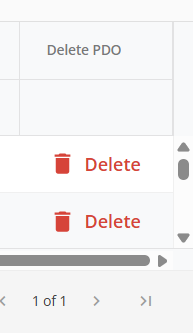
Delete Product Delivery Orders from the Orders page using the Delete button in the grid if incorrect or unneeded. The Agvance SKY Company Admin User Role permission Delete Product Delivery Order is required to use the Delete option.
On the Orders page in Agvance SKY Energy, hover over the blue + icon, and select + New Product Delivery Order.
On the New Product Delivery Order page, all fields will appear with sections expanded. The left navigation tree expands view upon hovering, and choosing a section will jump to that area of the form.

Tank

- Add the Tank to the order by selecting + Add Tank to open the search overlay and choose from active Tanks. The Tank Serial Number, Customer Name, Location, and Credit Status fields will populate upon choosing Select + Close.
- Once the Tank has been added, it can be removed and replaced if needed by selecting Remove Tank and choosing + Add Tank to select the replacement.
Note: Adding a Tank is required to enter a Product Delivery Order.
Order Details

- Call-in Date – Required field that auto-fills with the current date.
- Due Date – Required field that auto-fills with the current date.
- Additional Comments – Include comments when creating a PDO for the Driver to help with the order once received.
Delivery

- Product Name / Product ID / Product Location
- If a Tank is not selected, the following message displays: Select a Tank to manage delivery options.
- Once a Tank is selected, the Product Name, Product ID, and Product Location attached to the Tank will display. Using the Change Product button opens a Product search overlay for a new Product selection.
- If there is not a Product attached to the Tank, + Product displays and is mandatory to save a Product Delivery Order.
- Determine Remaining By / Current %
- If a Tank has a monitor, the Determine Remaining % By drop-down will default to Monitor with Current (%) or optionally choose Calculated.
- If a Tank does not have a monitor, the default is Calculated and displays in a read-only state with Estimated (%). Estimated (%) will default to values in the database but can be changed.
- Current Tank Percent on open Product Delivery Orders can be edited.
- Out of Gas – Mark the tank as Out of Gas.
- Times Out of Gas – Counts how many times the Tank has previously been out of gas.
- Delivery By – Defaults to Fill Percent or choose Number of Gallons or Amount of Purchase.
- Delivery Amount (%) / Delivery Amount (Gal) / Amount of Purchase ($)
- If Fill Percent is selected, Delivery Amount % displays with an initial value of 0. This can be changed if needed and has a maximum of three numeric characters.
- If Number of Gallons is selected, Delivery Amount (Gal) displays with an initial value of 0. This can be changed if needed and has a maximum of five numeric characters.
- If Amount of Purchase is selected, Amount of Purchase ($) displays with an initial value of 0. This can be changed if needed and has a maximum of four numeric characters.
- Charge Price – Price charged per gallon.
Notify Driver
Upon saving the PDO, a standard formatted email will be sent to the email associated with that Driver. By default, any Drivers already linked to a Tank will display. Additional Drivers can be selected by choosing the + Add Driver button.
Note: Only Drivers with email entries added in Agvance Windows will display.

- Driver ID
- Driver Name
- Driver Email
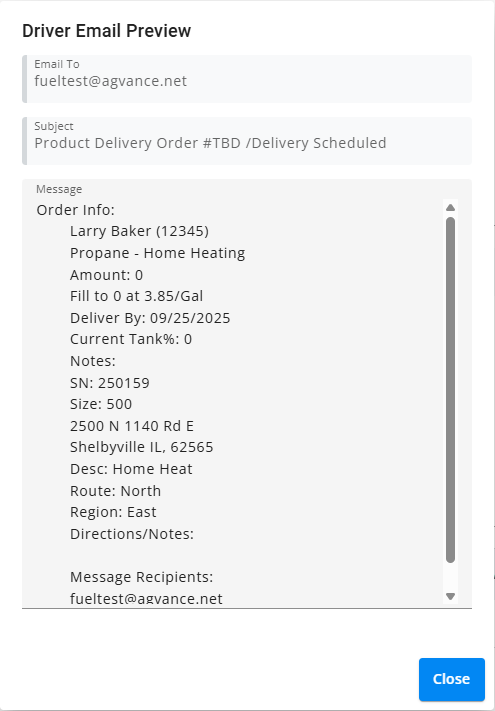
- Preview Message – Selecting the Preview Message icon will open a dialog showing what the message to the Driver will look like.
- Email from will default to the company’s email as the sender.
- Email To will show Drivers email address.
- The Subject will read Product Delivery Order #TBD / Delivery Scheduled.
- Delete – Removes the selected Driver from receiving notifications.
- + Add Driver – When selected, a Driver search displays to choose from a list of active Drivers.
Saving or Canceling
Selecting Create Order will save the new Product Delivery Order and route back to the Orders list page. A validation banner at the bottom of the screen indicates the order has successfully been saved.
- If any required inputs are empty, the validation banner will display at the top of the page, below the header, calling attention to required inputs.
- A Tank must be added.
- Delivery Amount (% or Gal) or Amount of Purchase ($) must be entered.
- The validation banner and error state of inputs will display until Create Order is selected after entering required content.
Select Cancel to close out and return to the Orders screen. If any field was populated, a message displays stating the Tank will not be saved. Select Discard & Continue to cancel the Tank or Go Back to return to the Add Product Delivery Order form.
