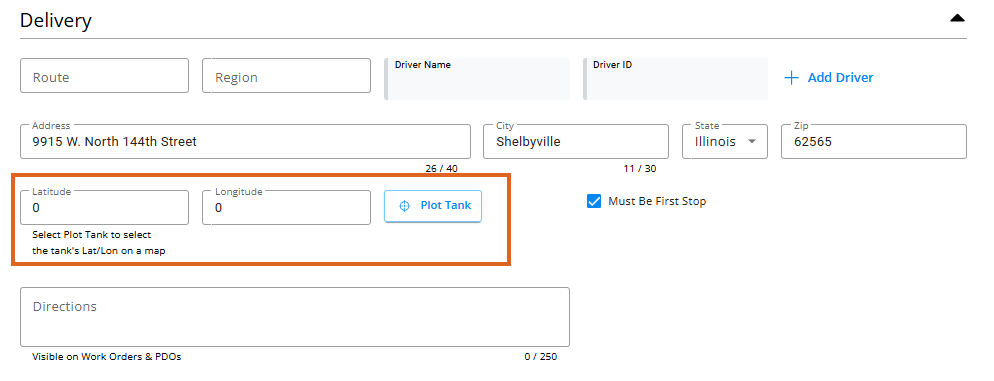
When adding a new tank under Agvance SKY Energy / Tanks, the Delivery section gives the ability to plot the Tank’s location on a map view.
Select Plot Tank to use this feature.
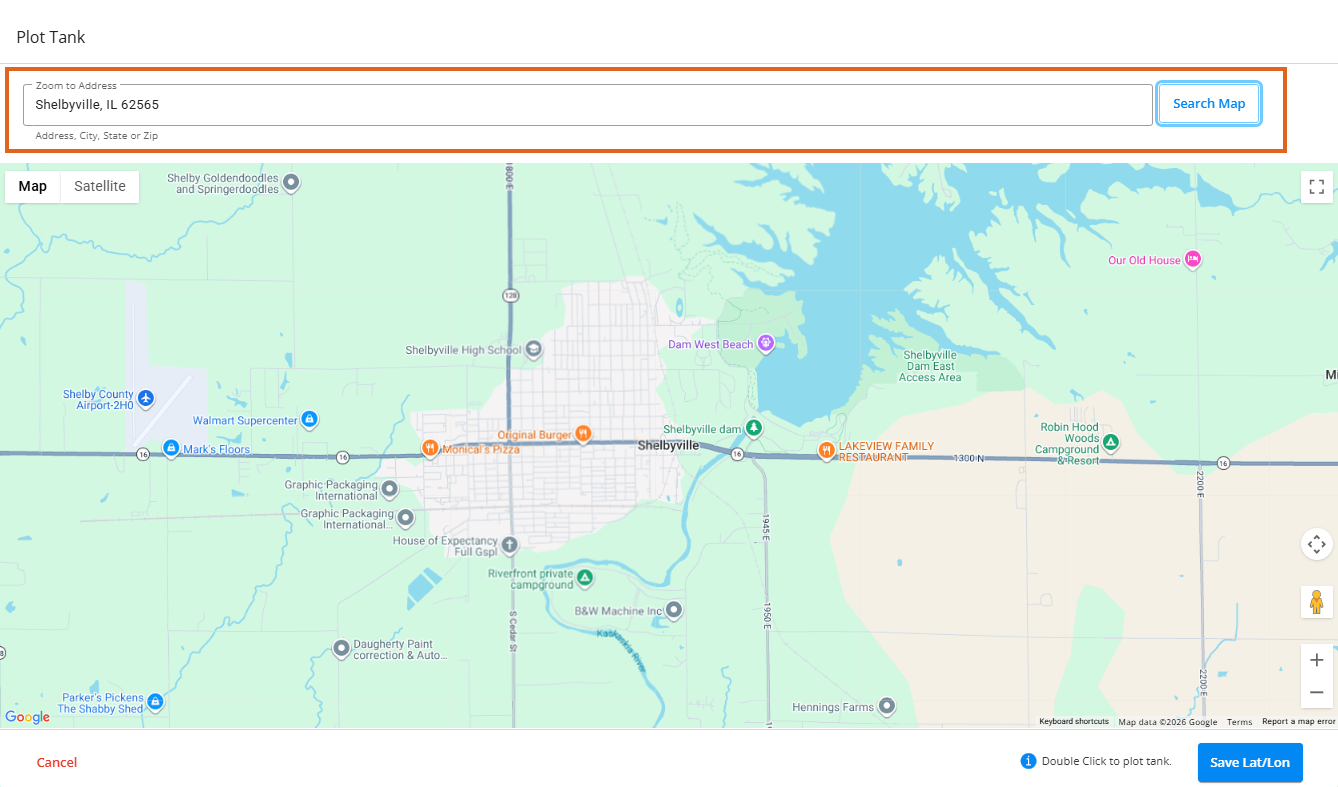
Use Zoom to Address bar to enter an Address, City, State, or Zip, focusing the map to a specific location to plot the Tank.
- By default, this field will pre-populate to the Delivery Address if one was entered on the Tank form already.
- If no address was entered, the map will zoom to the Zip Code last used by the Agvance SKY Energy Map.
- If no address was entered and no Zip Code was found, the map will zoom out to display all of North America with the option to enter an Address, City, or Zip Code in the Zoom to Address bar to find/zoom in on.
- The Address, City, or Zip Code can be changed in any scenario above manually by backspacing and typing a new search string then selecting Search Map.
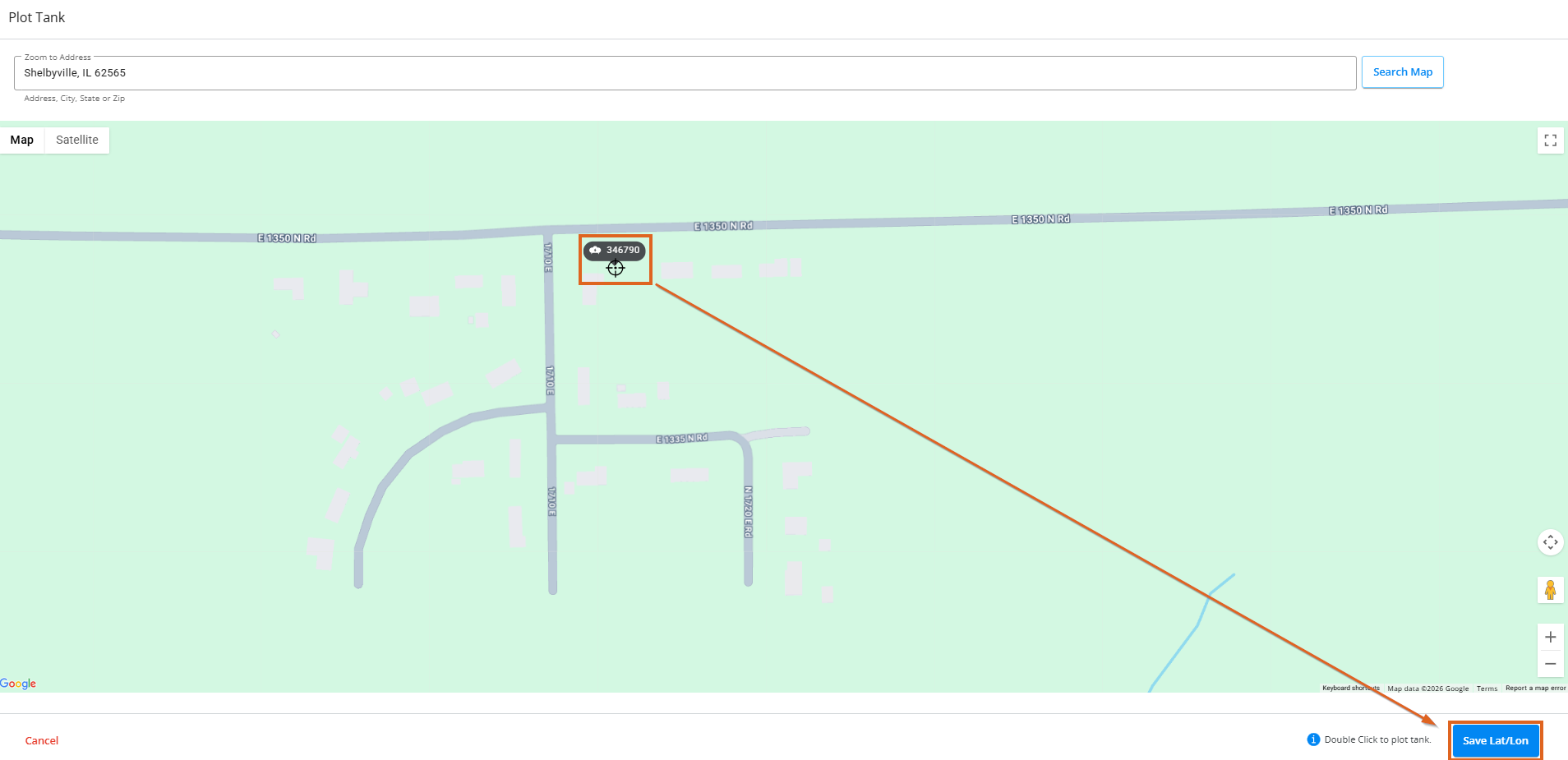
A Plot Tank icon serves as the cursor, and by hovering over the map to where the Tank should sit then double clicking, the Tank's location is plotted on the map. 
If the location looks correct, select Save Lat/Lon to return to the Add Tank form and proceed to Save to save new lat/lon for the Tank.
Alternatively, if editing the Tank Information and the Tank has already been plotted, select Move Tank and choose the correct new location.
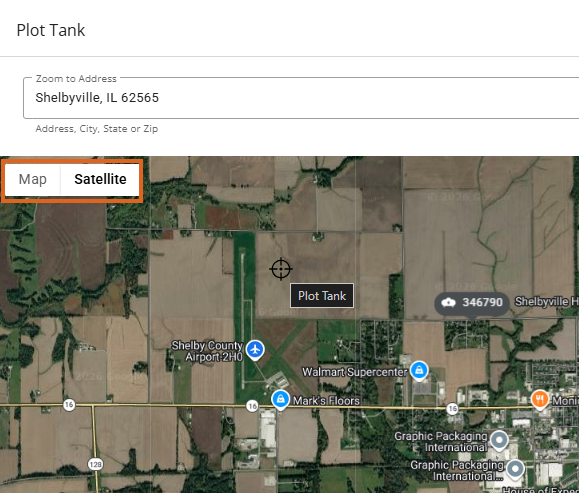
Note: Map view can also be switched to Satellite view from the upper left.