Energy Force
- SKYR-963 / Optimizer Export for Summer Fill – Optimizer will now export tanks over the summer fill threshold limit when summer fill is not active.
- Why – Optimizer was not exporting tanks for scheduling when the estimated % was above the summer fill threshold limit and summer fill was not active.
- When/Where – Optimizer Maintenance.
- Action Needed – No action required.
- SKYR-1087 / Tanks No Longer Editable When Inactive – Inactive tanks are no longer modifiable. This includes the Tank Information on the customer and the browse tables associated with tanks. If the Tank is a customer-owned tank and needs activated again, select the new Activate Tank button on the tank screen to reactivate the tank. This button does require a new user right, Allow_TankActivation.
 When using the Activate Tank button on the customers Tank Information page the Last Modified Date on the tank will be updated and an entry will be written to the audit log. A check is also done to ensure the tank guid is not active on another account. If it is active on another account, the user will receive a message stating it is and will contain the customer number and tank RRN of the active tank.
 If it necessary to have an inactive tank modified please contact support.
- Why – For mutual Energy Force and Agvance customers to prevent sending tanks that have been moved to another account and are inactive from being moved upon the Tank Import.
- When/Where – Customer Menu / Customer Maintenance / Tank Information and Supervisor Menu / Maintenance Menu / Browse Menu / (Various tank tables).
- Action Needed – Add new user right to users who are allowed to reactivate customer-owned tanks.
- SKYR-1174 / Tank Readings for Back Dated Tickets After Clock Roll – Tanks with deliveries back dated prior to a Degree Day clock roll will deplete as expected afterward. The first delivery after the clock roll will display negative value (number of Degree Days between the actual read for the date and the value when the clock was rolled).
- Why – Tanks were not depleting when a delivery was back dated to a date prior to a Degree Day clock roll.
- When/Where – Customer menu / Customer maintenance / Tank Information and Tank Readings
- Action Needed – No action required.
- SKYR-1249 / Contract/Booking Import Error Correction – Booking items marked as invoiced, such as 0 qty items, should not be included in the Booking\Contract sync. Bookings with a product that does not match the Tank Type of the customer will not import and will report as error in the log file.
- Why – To prevent already imported contracts from showing as errors on the import log and to not import contracts/bookings where the product doesn’t match the tanks setup on the customer.
- When/Where – When importing contracts at Posting Menu / Contract Import / Contract Import.
- Action Needed – No action required.
- SKYR-1252 / Customer, Tank and Booking Sync Runs if Log File is Open – Customer, Tank and Booking Syncs will no longer be stopped from running due to the Log file being open. If the Log file is open when the syncs are ran, a new Log file will be created with a time stamp added to the end of the Log file name. Once the original Log file is closed additional runs will continue to add to it.
- Why – Allows the syncs to run even if the file is open and ensures the entries are logged.
- When/Where – Posting Menu / Contract Import / Contract Import
- Action Needed – No action required.
- SKYR-499 / Journals Not in Master Clear File – Journals can only be accessed by one user\session at a time. If a second user\session attempts to select a journal that is already open then a message will be given stating the user who is already accessing the journal. Also, the full user name will be logged in the Journals Open table instead of just the first 4 characters.
- Why – Preventing payments from not being included in the master clear PM.dat file.
- When/Where – The Journal Open table only adds one entry per user per journal. If a user had 2 sessions accessing the same journal and exited the journal in 1 of the session, the Journals Open entry is removed, leaving the other session with the journal still open.
- Action Needed – No action required.
- SKYR-1168 / Timeout Exceeded Exceptions Information – General Process Exception table will now included additional data on Timeout Period Exceeded exceptions.
- Action Needed – No action required.
- SKYR-1175 / Fixed Duplicate Serial Number Error Message Display – When creating a new tank on a customers tank information, if the serial number matches the serial number of another active tank a message stating it is a duplicate serial number will display. Once the message is acknowledged the tank can be entered.
- Why – A message alerts users that a tank serial number being set on a customer is a duplicate of another tank. Previously, the message alert flashed but did not display for acknowledgement.
- When/Where – Customer Menu / Customer Maintenance / Tank Information
- Action Needed – No action required.
- SKYR-1203 / User ID field Character Count in the Opti Log – The User ID field in the Opti Log has been increased from 10 to 50 characters.
- Why – Optimizer schedules were not importing back into Energy Force when the User ID of the person running the Optimizer was longer than 10 characters.
- Action Needed – No action required.
- SKYR-1011 / Automatic Contract/Bookings Import for Mutual Energy Force and Agvance Customers – Energy Force now has a Contract/Booking Import for mutual Energy Force and Agvance customers without having to run the Export/Import process. Only new bookings, not marked as exported, will attempt to import. Two new Agvance Preferences are automatically created for Import Bookings From Agvance and Attach Tanks to Bookings and default to N. To run the import these setting need to be changed to Y located under the Supervisor Menu / Setup Options / Agvance Setup Menu / Agvance Preferences. Read More.
- Why – To alleviate running a manual Booking Import process.
- When/Where – Supervisor Menu / Setup Options / Agvance Setup Menu / Agvance Preferences
- Action needed – Agvance Preference needs to be changed to Y in order to run the import.
- SKYR-1012 / Agvance Booking Import Automated Background Task – Agvance Booking Import has been added to the Automated Background Tasks to run at scheduled intervals throughout the day alleviating a manual process. Read More.
- Why – To alleviate running a manual Booking Import process.
- When/Where – Main Menu / Supervisor Menu / Maintenance Menu / Automated Task Menu / Background Tasks
- Action needed – No action required.
- SKYR-1102 / Energy Assistance Contract Rollover Tax – Energy Assistance Non-Taxable Contract with an overage to a taxable Tank applies taxes correctly on the overage during Manual Sales Posting.
- When/Where – Manual Sales Posting on an Energy Assistance non-taxable Contract with an overage.
- Action Needed – No action required.
 When using the Activate Tank button on the customers Tank Information page the Last Modified Date on the tank will be updated and an entry will be written to the audit log. A check is also done to ensure the tank guid is not active on another account. If it is active on another account, the user will receive a message stating it is and will contain the customer number and tank RRN of the active tank.
 If it necessary to have an inactive tank modified please contact support.
EnergyTrack
- SKYR-769 / EnergyTrack Discount Option Selection – Discount option selection window on the EnergyTrack Invoice screen has been updated. The current discount code will be highlighted, displaying lowered number discounts above it.
- When/Where – When opening the Discount selection window, the current discount being used should be highlighted.
- Action Needed – No action required.
- SKYR-1157 / EnergyTrack LCR Code Update – Energy Track LCR code updated to ensure proper Totalizer values are retrieved based on the compensation type of the register. This will correct the problem of a Net Value existing on a fuel truck and that value being pulled in at the start and end shift when the gross value should be retrieved.
- Action Needed – No action required.
- Action Needed – No action required.
- SKYR-260 / Restrict Pricing Detail on Delivery Ticket Printout – Energy Track has the ability to hide the price on a Delivery Ticket. This is handled at the Tank level within Energy Force. Located at Customer Menu / Customer Maintenance / Tank Information. Check the Hide Price on Energy Track Delivery? box in the lower right corner of the Products tab, this will apply to all products listed on the tank.
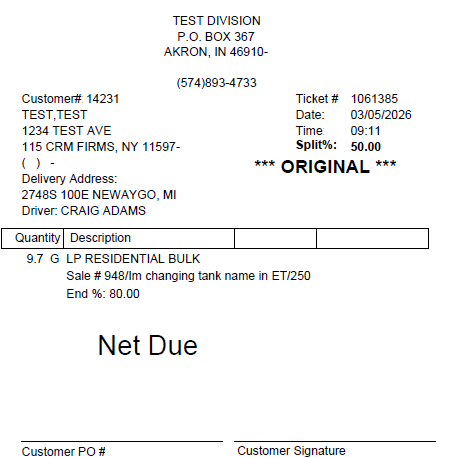
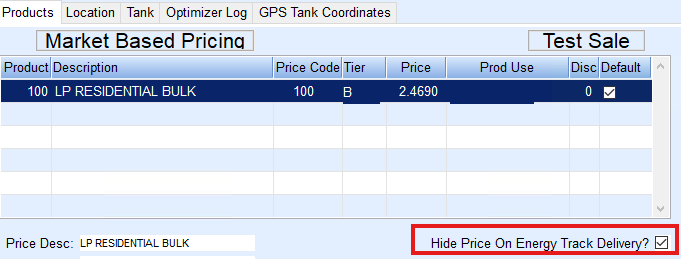 The Price per Gallon, Taxes and Totals will not display on the Invoice, but they will be priced in the History. For a multi-delivery, if any tank is marked to Hide the Price on Energy Track Delivery?, then all deliveries on the Invoice will be hidden. When a split is used on a tank and marked to Hide the Price on Energy Track Delivery?, then all Invoices for the split will hide the pricing details. This does not apply to manually entered Invoices. Here is an example of the Invoice with the price hidden.
- When/Where – Only the Ticket\Invoice from Energy Track and the PDF of the Energy Track Ticket\Invoice will hide the pricing. Reprinting from anywhere else in Energy Force will display the price.
- Action Needed– A new download to Energy Track is required for this feature to be used.
- SKYR-1213 / Splits Checkbox on Invoice Screen – Splits checkbox can be checked and unchecked without issue on Energy Track Invoice screen.
- Action Needed – No action required.
- SKYR-665 / Allow Driver to Change Contract Overage Price – Energy Track allows Drivers to update the Prices on Contract Overage Gallons. Change New RET Option #42 from default N to Y to allow drivers to change contract overage prices. Read More.
- When/Where – This option will be auto created the first time a download is created or by accessing the RET Options at Supervisor Menu / Maintenance Menu / Energy Track Menu / Re-Engineered Energy Track.
- Action needed – RET Option 42 will need changed from N to Y.
 This is the corresponding delivery in the customers history.
