- SKYR-1085 / Energy Map Updates –
- Licensing requirement for the Energy Map has been removed.
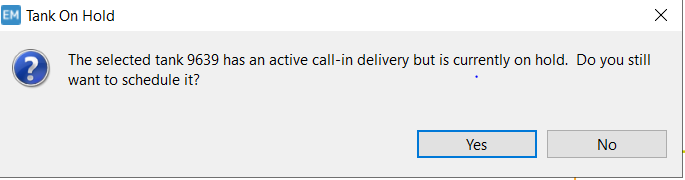
- Tanks on Hold with an active call in can now be scheduled on the Energy Map with a a message that alerts the tank is on hold.
- Schedules will only be saved back to Energy Force if created in the current session. This prevents tanks being rewritten to Print Map Scheduling after they have been removed.
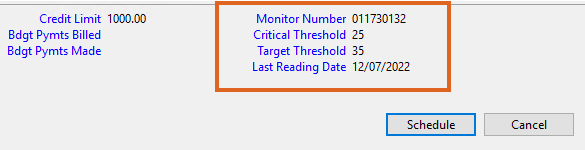
- Monitor information now displays in the special information box dialog box.
- The Energy Map tank recalculation feature will also modify the route code for monitored tanks (Gallons/Percent Update Only) to match the tank code when selected.
- A new Schedule tool has been added: Create Schedule in Area.
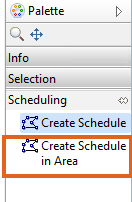 Select Create Schedule in Area. This allows for drawing a boundary area around tanks for scheduling, then hold Shift and double click to finalize. A dialog box will appear with additional options.
 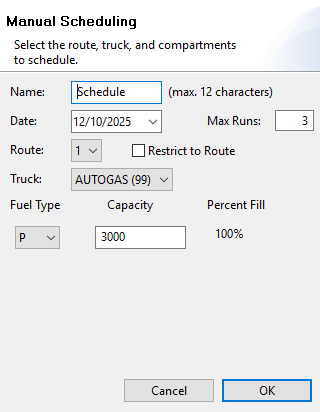 Based on the Fuel Types specified for the selected truck, matching tanks that are eligible for a delivery (based on filtering options in settings) are scheduled starting at the yard for that route and going to the nearest tank. Continuing on with the next closest tank and refilling at the yard when needed. This continues until all eligible tanks are scheduled or the max number of runs is reached. The Finalize Schedule dialog box is presented to the user for confirmation.
 - To reclaim space on servers, the map checks to see if it has permission to move the maps folder under the C:\ProgramData\ folder instead of the %localappdata%EnergyMap\cache\ folder where it had been located. When allowed, the folder will be moved to the new location. This folder contains the biggest part of the data and was taking up a lot of space for each user.
 Select Create Schedule in Area. This allows for drawing a boundary area around tanks for scheduling, then hold Shift and double click to finalize. A dialog box will appear with additional options.
  Based on the Fuel Types specified for the selected truck, matching tanks that are eligible for a delivery (based on filtering options in settings) are scheduled starting at the yard for that route and going to the nearest tank. Continuing on with the next closest tank and refilling at the yard when needed. This continues until all eligible tanks are scheduled or the max number of runs is reached. The Finalize Schedule dialog box is presented to the user for confirmation.